Typed availability times do not save when editing items in FF/Safari

Problem:  Typing a time into the availability box on an item will result in that time from not being saved.  This is occurring in FF and Safari.

Solution:  This bug has been identified by Bb as a defect; a fix is included in the release which will be installed in December.  In the meantime, use Chrome if you need to edit times by typing in specific times.

Resolved: Grade center only lists one assignment attempt

Problem: There is only one attempt listed in the grade center for an assignment with multiple submissions.

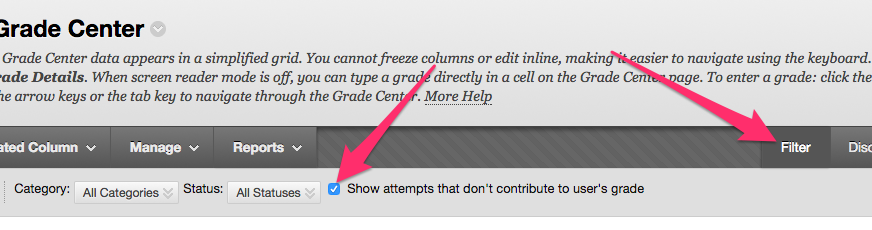
Solution:  To view all attempts in the Grade Center,

  1. Go to Control Panel > Full Grade Center
  2. In the upper right corner select filters.
  3. On the filters menu check the box next to “Show attempts that don’t contribute to user’s grade”

Dropped/Withdrawn students listed as “Managers” in the Discussion Board

Problem: Instructors visiting the “Manage” area of their discussion board may see students who are listed as “Managers,” yet are not in the course.  This can happen when a student enrolls in a course (however briefly), and subsequently drops or withdraws.  Despite their being listed as a manager in the discussion board, they do not have any access to the course, and they are not listed as a manager if they re-add the course.  There is currently no workaround or fix available for this issue.

Logging in with another browser tab/window during a test breaks save answer

Problem: While taking an exam, opening a new window/tab in the same browser and creating a new session will break the “Save Answer” button.   For example, if a student begins a test, then opens a new tab and goes to myUVM and clicks on the “Blackboard” link, the save answer button will show an error.

Solution: Blackboard has a bug fix which we are currently testing and are working towards deploying.  In the meantime, the following workaround will improve the testing experience.   During an exam, if multiple tabs/windows in Bb are needed (i.e. for an “open book” exam), open a different browser (i.e. FireFox to navigate your course while the test remains open in the original browser (i.e. Chrome).  If a new session has been created in the same browser, and save answer is not working, deleting the cookies and cache then logging back in will allow for resuming the exam.