
Migrating to the new UVM Catamount WordPress theme can be as fast as applying the new theme to your site. However, there are a few things you want to take a look at when migrating.
This guide walks you through the steps to successfully adopt the new theme on your existing WordPress website.
Overview: What to expect
After applying the UVM Catamount WordPress theme, you are going to need to:
- Rebuild navigation using WordPress blocks
- Rebuild layouts that used Atomic Blocks
Step 1: Capture your existing navigation
Before applying the new theme, take a screenshot of your current navigation so you can rebuild it later.
How:
- Open your current site
- Click the menu button to expand navigation
- Take a screenshot
Mac: Command + Shift + 4
Windows: Print Screen
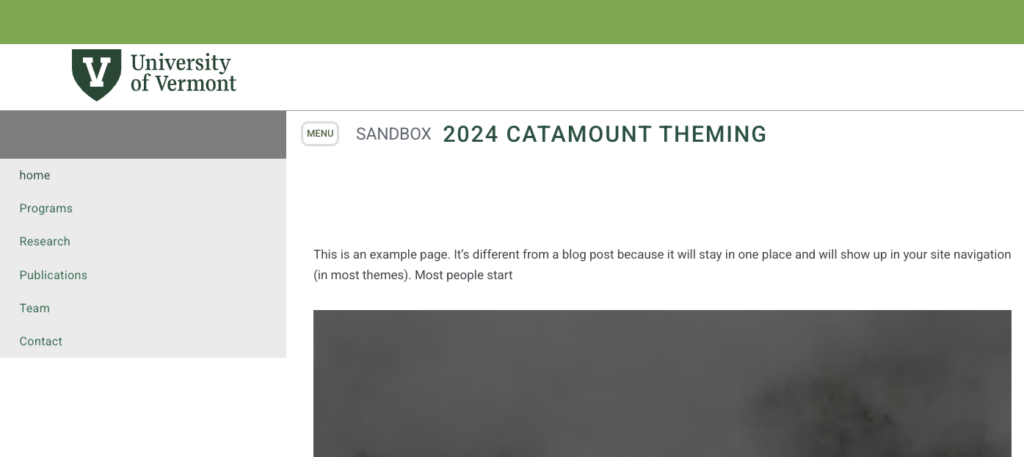
💡 You’ll use this as your reference when rebuilding navigation later.
Step 2: Activate the Catamount theme
Once the theme is available:
- Go to Dashboard → Appearance → Themes
- Locate the Catamount Theme
- Click Activate
Note: look for the updated thumbnail for the Catamount theme. It looks like this:

Step 3: Verify the new theme
After activation:
- View your site
You’ll notice:
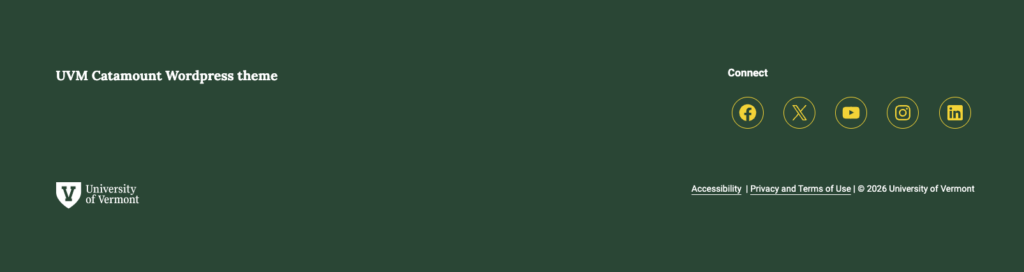
- New green header
- Updated typography
- New footer design

✔️ This confirms the new theme is active.
Step 4: Rebuild your navigation
Navigation will not carry over from the old site.
This is because:
- Old system = Classic menus
- New system = Block-based navigation
👉 You must rebuild it manually.
📌 Follow the dedicated navigation tutorial to complete this step.
Step 5: Fix layouts (especially Atomic Blocks)
If your site used:
- Accordions
- Multi-column layouts
- Atomic Blocks (AB Blocks)
⚠️ These are no longer supported
You’ll need to:
- Rebuild layouts using modern blocks
- Adjust designs case-by-case
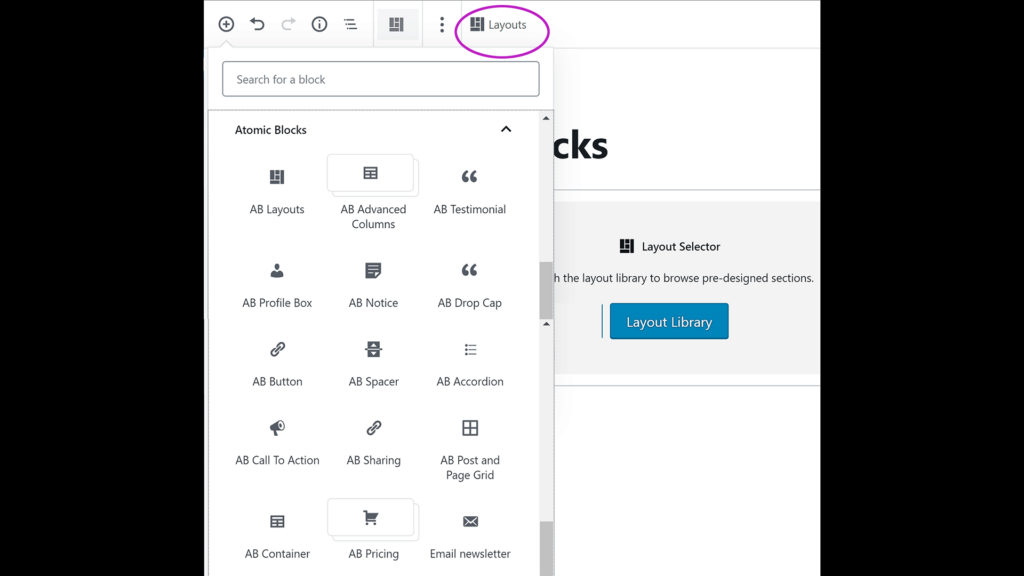
💡 There’s no one-size solution—review each page individually.
That’s it!
With this approach, you are editing the live site so there isn’t a launch procedure. Your site has always been live and viewable by the public.
Consider: Enabling search engine indexing
If you want your site to be crawled by search engines, make sure that you turn on search engine indexing.
- Go to Settings → Reading
- Ensure Search engine visibility is enabled
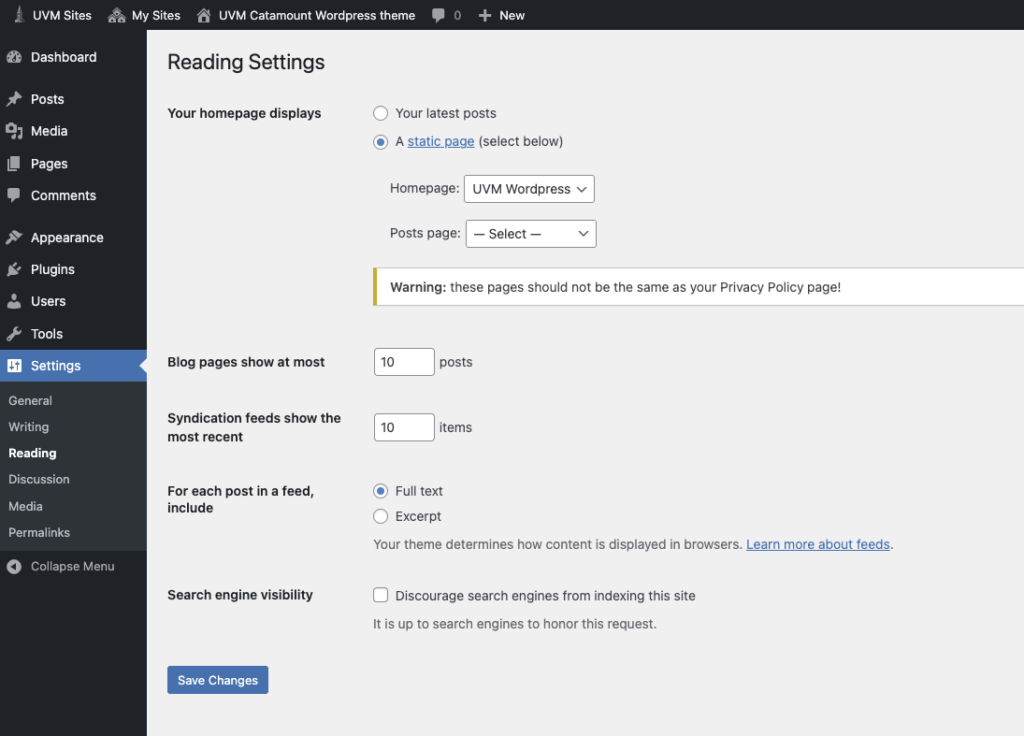
✔️ This allows search engines to index your new site.
Final thoughts
Migrating to the Catamount theme requires a few manual steps, but:
✔️ It’s a one-time process
✔️ It gives you a modern, flexible site
✔️ Most steps are quick and straightforward
Need help?
If you run into issues at any stage:
- Attend WordPress help hours
- Get guidance on layouts, navigation, or content