Teaching Extra-Large Classes Online: 5 Principles I’m Following
December 16th, 2025
No comments
This is/was focused on teaching during covid, but there are some solid suggestions here.
Categories: Large Classes
This is/was focused on teaching during covid, but there are some solid suggestions here.
Link to article: https://docs.google.com/document/d/1iyJmKvib2gIiwsEbLHdDtWBpDZ76_dqDMlcvh_SDLUg/edit?tab=t.0#heading=h.yq6fliouor5w
Here is a good resource for writing effective test questions that encourage critical thinking and questions that require explanation, interpretation, integration and synthesis, rather than just recall of facts. Some examples are provided at the bottom of this resource from the University of California, Riverside School of Medicine. Link: to Writing Effective Test Questions resource.
Brightspace has an integrated audio/video tool called Video Note. You can create and add audio/video elements to your course on-the-fly using this tool with the option of instant captioning. You can add a Video Note to announcements, content areas, grading/giving feedback to students and within Brightspace discussions. A few simple ways to get started using video note may include:
Below I have outlined how you can go about adding a Video Note in different areas of your course.
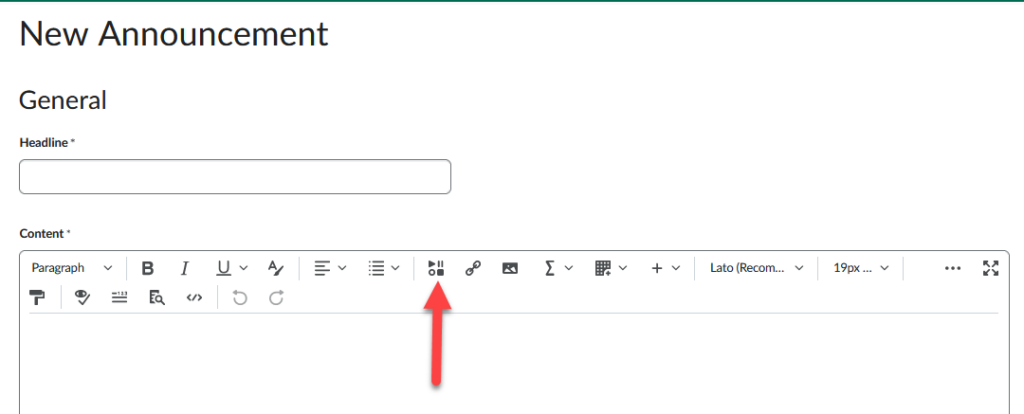
From the tool bar menu in a Brightspace tool you can click on:
When grading a students assignment submission below the Overall Feedback section, you will see options to Record Audio and Record Video.
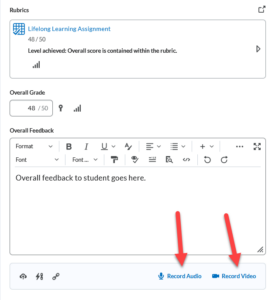
You can use either of these tools to provide audio and/or video feedback to students. You can then follow the same steps outlined above to create your Video Note.
The information here should allow you to get started with creating Video Notes for your students.
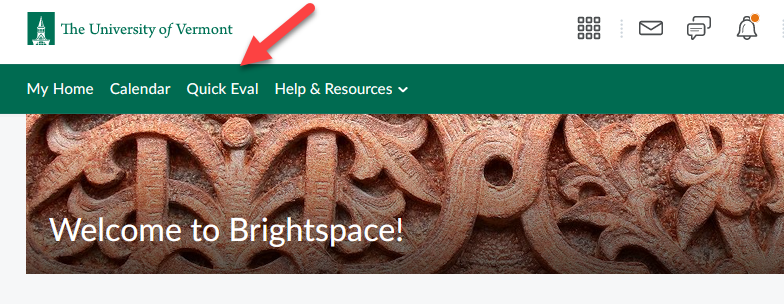
Quick Eval is a quick way to see, access and grade student submissions for assignments, quizzes and Brightspace discussions in one location. The Quick Eval tool is available in two places: on the institutional landing page and within your course.
If you access Quick Eval from the institutional landing page you will see submissions that need to be graded for ALL of the classes you are currently teaching.
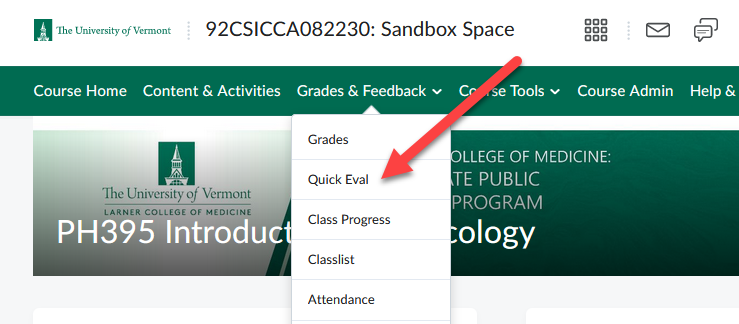
If you access Quick Eval from within a course (Grades & Feedback > Quick Eval) you will only see submissions that need to be graded for that specific course.
You can sort Quick Eval in two ways: by submission or by activity type.
If you would like to read more about this tool, check out some additional information and FAQ’s about this tool.
This is such a fun tool to know about! Using replacement strings allow information posted to the class to appear to be customized for each user. One fun way to use them is when you are writing and posting an announcement to students. According to Brightspace, this feature can help increase engagement levels and improve the overall learning experience. See images below for an example of how you might use replacement strings when posting an announcement in your class. I used the {FirstName} replacement string in the greeting. See red arrow.
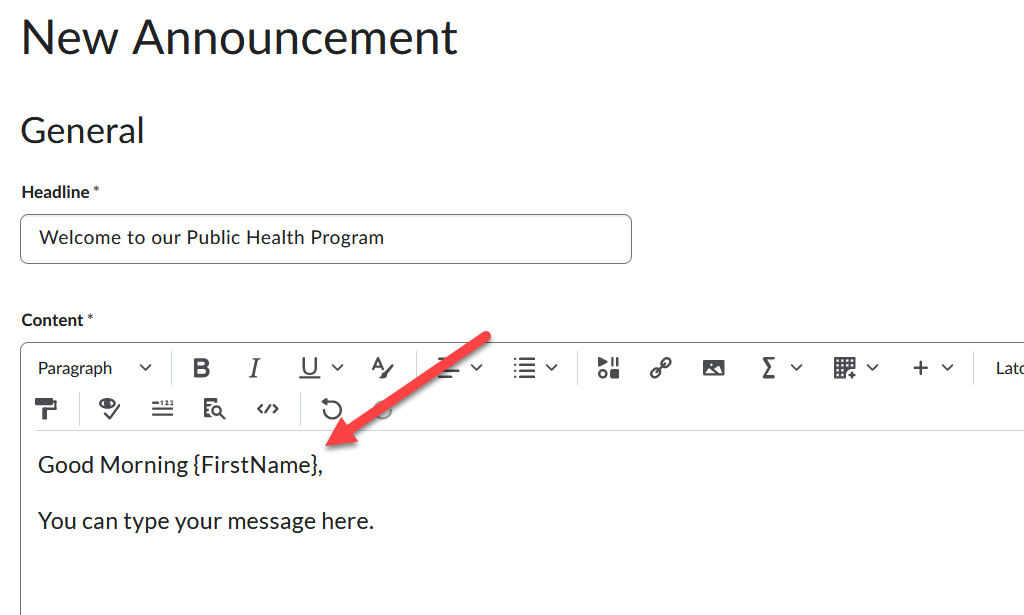
Once I publish this announcement, and view the announcements page, you can see that my name has been replaced by the {FirstName} replacement string.
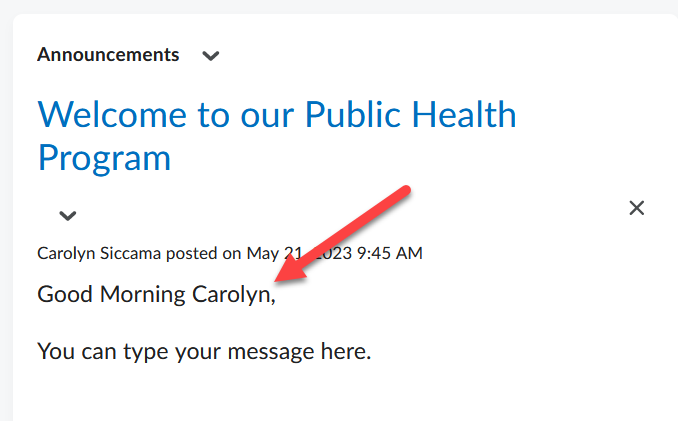
There is a long list of possible replacement strings. The {FirstName} is the most common one to use. For more information about replacement strings and a list of replacement strings
As we start a new semester, you can use the Class Progress tool (Grades & Feedback > Class Progress) to track student logins. If you see No System Access next to a students name that means they have not logged into the class yet.
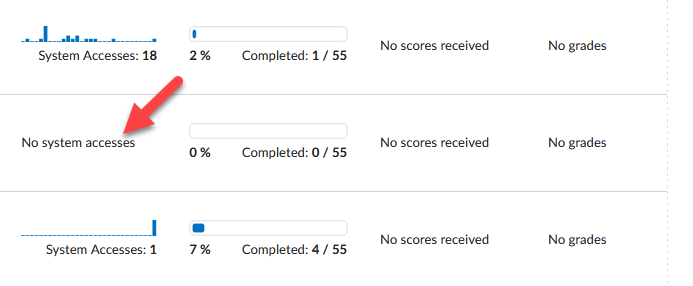
By clicking on the student name, you can drill down further and track student progress throughout the course. There is a wealth of information you can track and monitor for each student.
If you hover over the student photo/avatar, you an email them individually from this Class Progress page. The image below shows what it looks like when you hover over their photo. You can click the ‘Send Email’ button and you will be presented with a space where you can compose and send a message to the student.
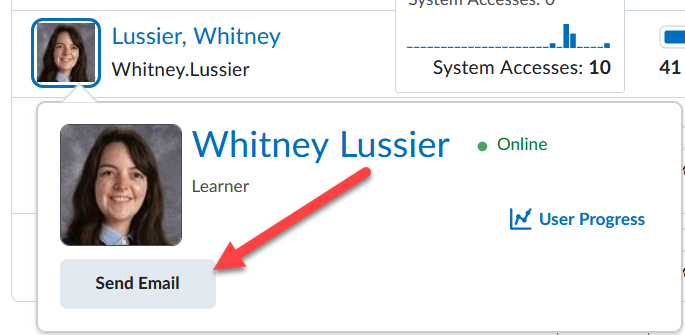
For more detailed information on Class Progress.
As the University transitions to Brightspace, I wanted to use this space to highlight some tips, tricks and tools that I think you will love.
Kurzweil, D., Marcellas, K., Henry, B. et al. Evidence-Based Guidelines for Recording Slide-Based Lectures. Med.Sci.Educ. 30, 1611–1616 (2020). https://doi.org/10.1007/s40670-020-01032-w
Recent Comments