Working from OFF-Campus
Working from Home or a strange computer? Need to access your UVM files, Email, and Calendar from off campus?
This Document assumes that you are at a “normal” computer with internet access.
In a “perfect world” if you are using the laptop computer that you normally use at UVM, turn on the Cisco VPN software, log in and then connect to your documents and shared drives as you normally do on campus. The same should hold true for your Email and Oracle Calendar. In the “imperfect world” we actually live in, this does not always work for a variety of reasons and if normal procedure fails, then proceed to the method outlined below:


Note: the method below works all browsers and on both Macintosh and Windows*. (*not on all tablets and smartphones)

Email; on any internet browser: “webmail.uvm.edu” (do enter “www”). The “look and feel” of this web-based client will be different from your local client, but very functional.

Calendar; on any internet browser: “calendar.uvm.edu” (do not enter “www”) The “look and feel” of this web-based client will be different from your local client, but very functional.


Files; “My Documents” & “Shared Drives” Follow the procedure below on any internet browser (you will NOT need the VPN for this method)
-On any internet browser go to: webfiles.uvm.edu (do not enter “www”)
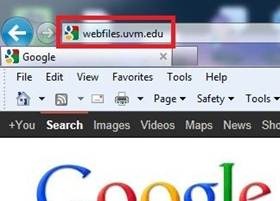
Figure 1
-login with your UVM NetID and password
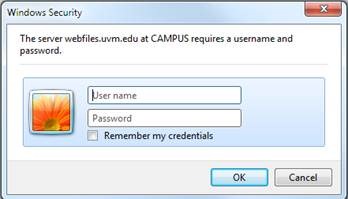
Figure 2
-You will see a screen that resembles the picture in figure 3 below:
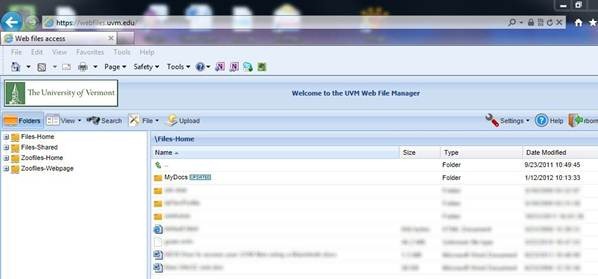
Figure 3
On the left side of the screen there are small “+” boxes that you can click to expand out a menu and the subfolders of that menu will be displayed in the right window pane. In figure 4, I have clicked on the “+” to the left of both the “Files-Home” and the “Files-Shared” thus the menu expands out and I can click on any of the folders I see and their contents will be displayed in the right pane. Below “Files-Shared” I see the shared drive folders that I have access to (yours will be different).
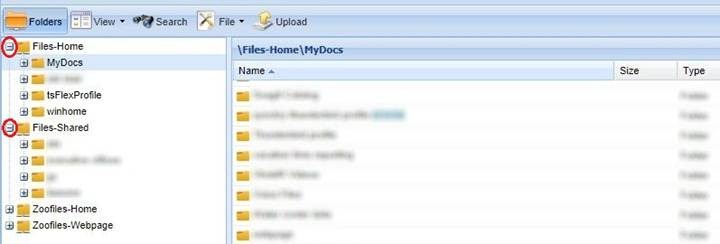
Figure 4
Let us suppose that I want to display the contents of my “MyDocs” folder, I can click on the folder icon labeled “MyDocs” in the left pane and the contents will be displayed in the right pane as seen in figure 5.
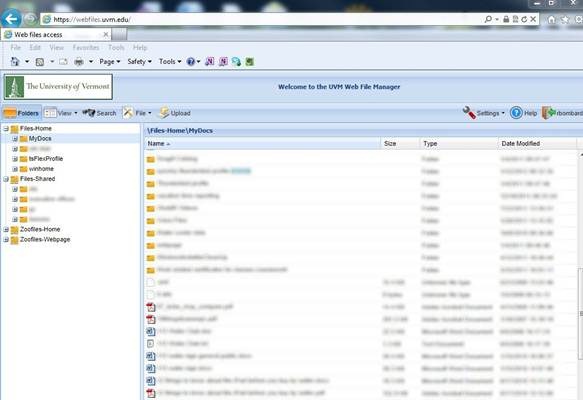
Figure 5
If you “right-click” on your individual files or folders you get the very exciting and useful options as seen in figure 6, such as downloading, viewing, editing, renaming, deleting, etc.
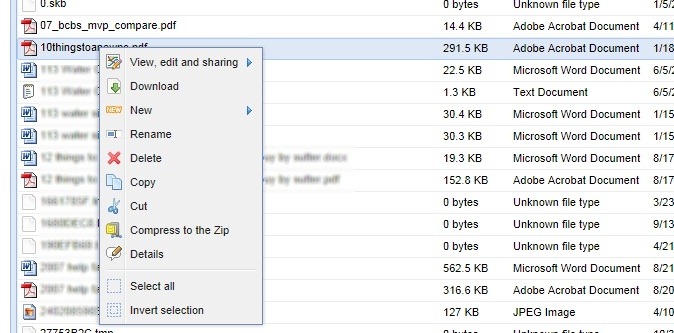
Figure 6
The End, for now. Thank you for your attention.
-Roger Bombardier Jr.
University of Vermont – ETS – Client Services
rbombard@uvm.edu
Office (802) 656-7744
Operating Hours: 08:00 – 16:30 M-F