Archive for May, 2011

Adventures in SyncML land

Posted in Uncategorized on May 25, 2011 by Roger Bombardier Jr.


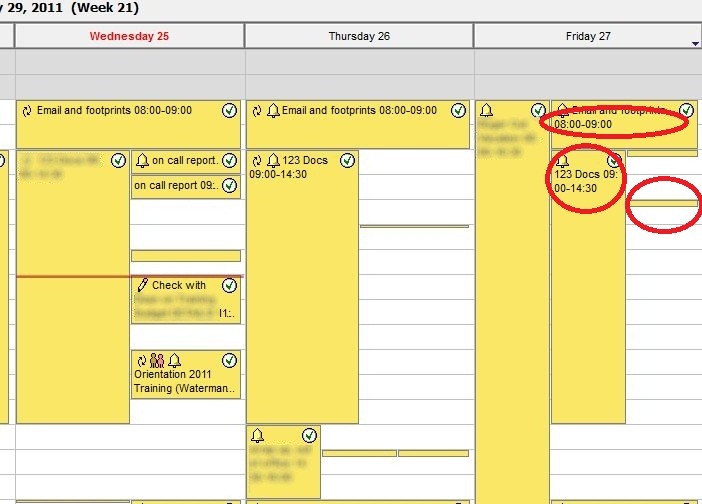
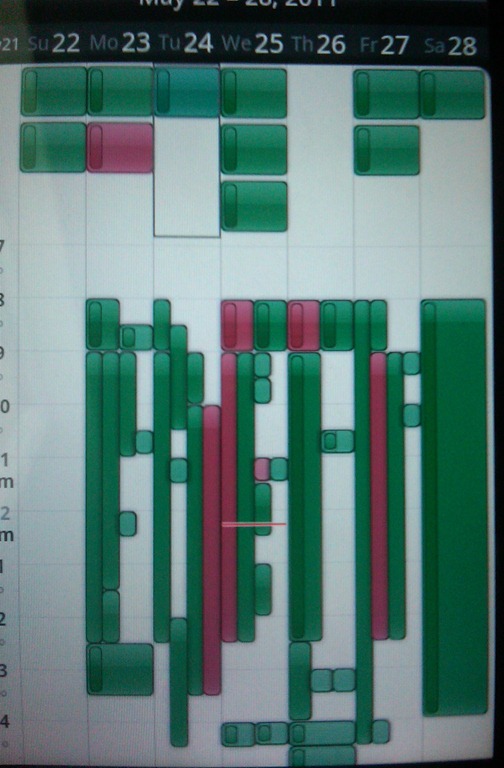
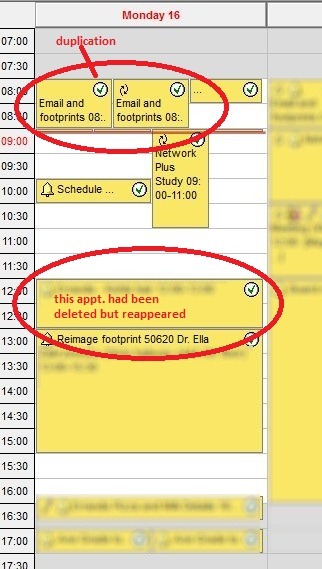
A semi-public controlled experiment; SyncML has seen fit to replace meetings that I had previously deleted see below, red circles

capture 2

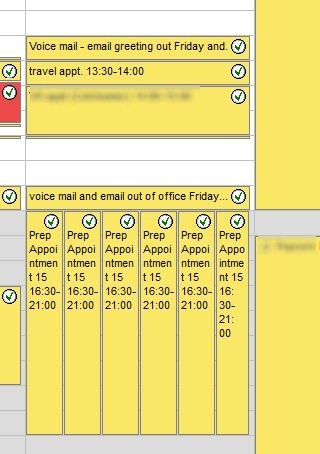
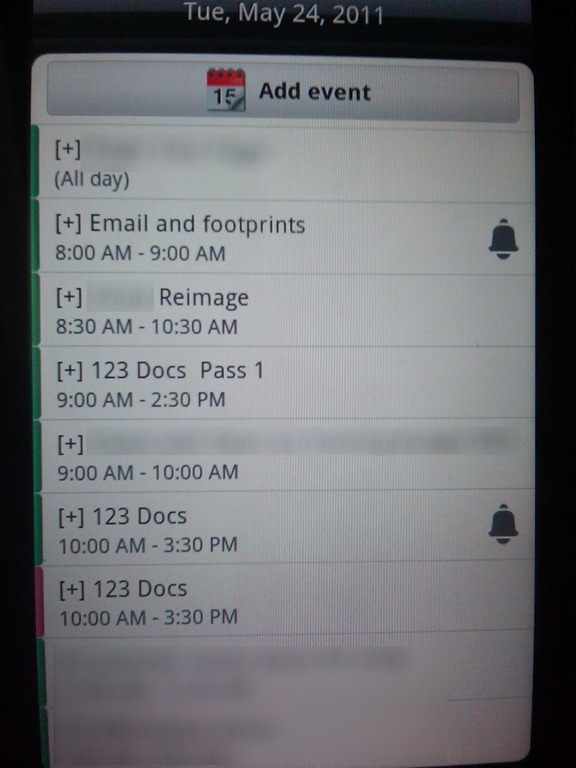
in some cases duplicate at least one multiple times:

Capture3

IMG00002-20110525-1532IMG00004-20110525-1146

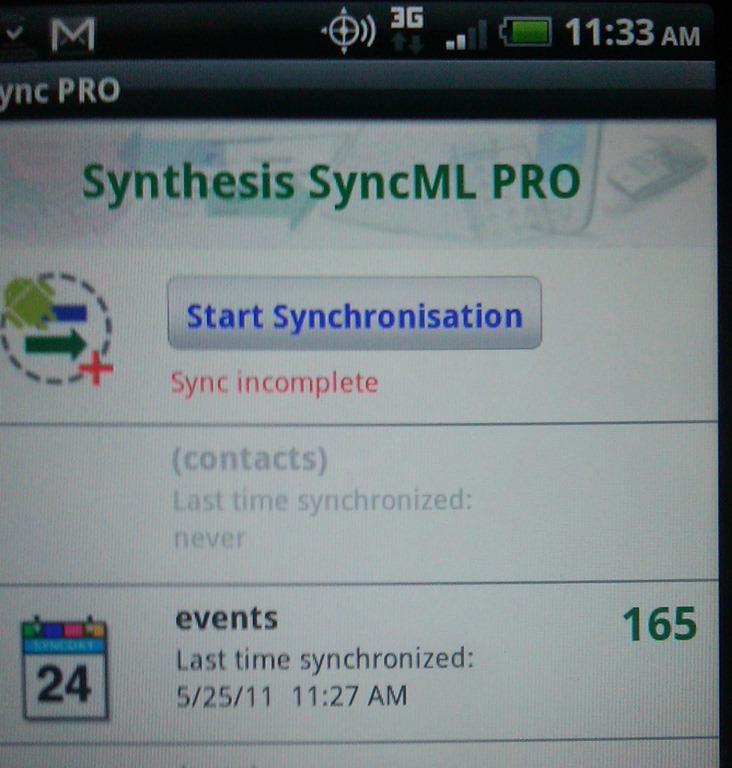
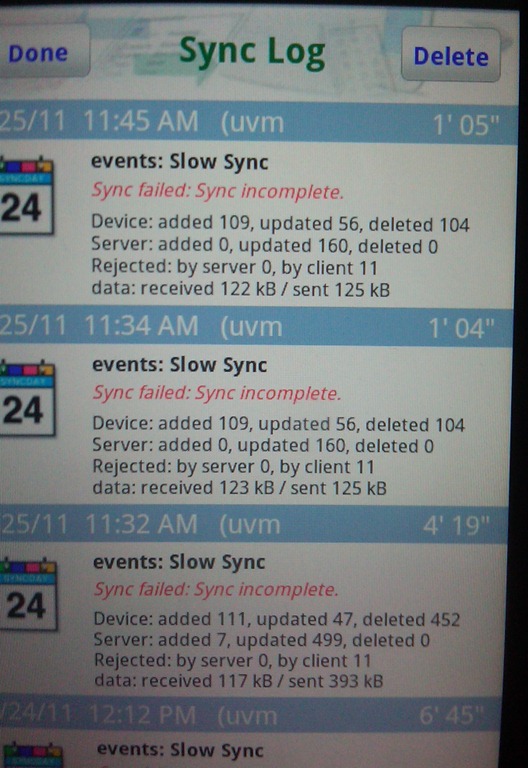
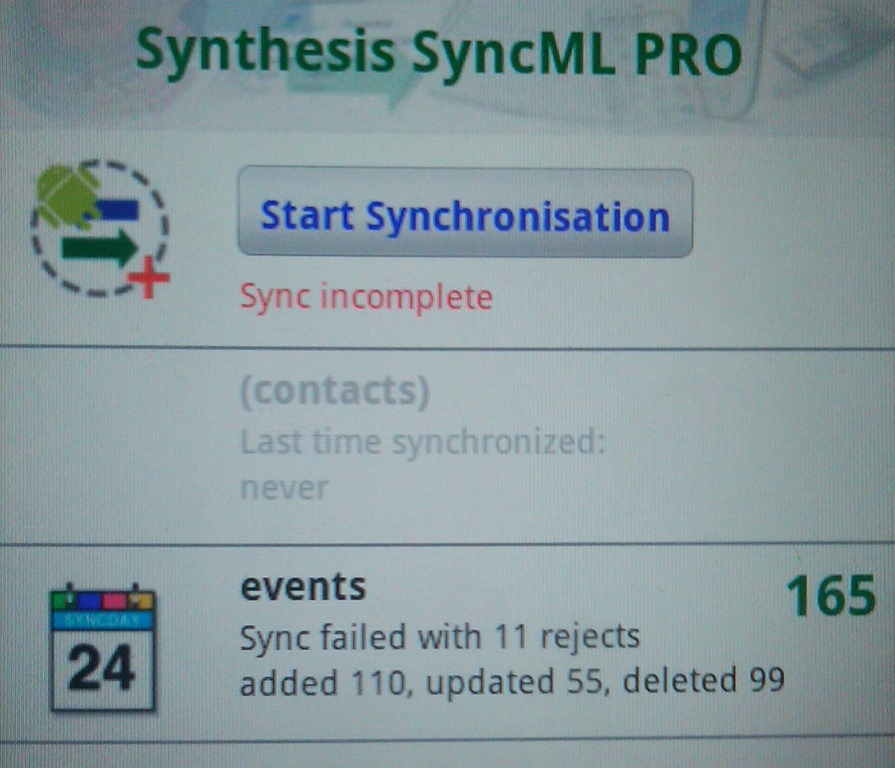
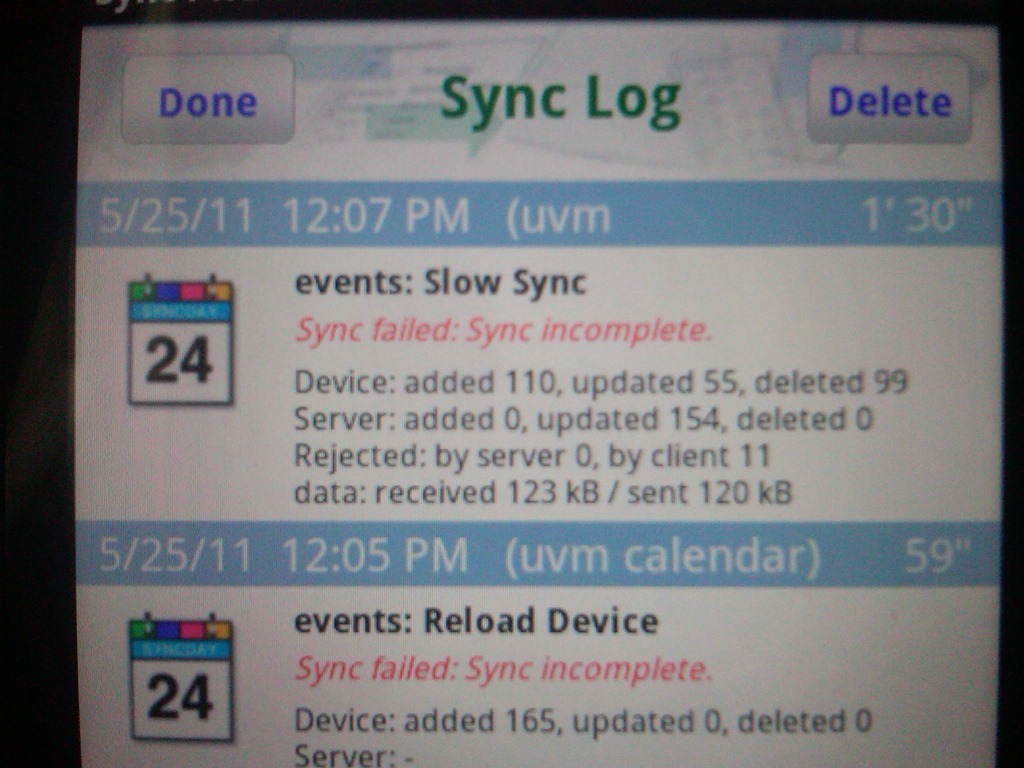
attempting reload of device, “sync incomplete”

IMG00007-20110525-1206


IMG00010-20110525-1221

Although the calendar has duplications, it is for the most part there, it would not be a good fit for a person whose calendar required strict accuracy.  But the basics work, and in some cases you get more than one meeting for the price of one!  Even the ones you’ve deleted.

IMG00008-20110525-1215


IMG00009-20110525-1215

HTC Thunderbolt with SyncML

Posted in Uncategorized on May 19, 2011 by Roger Bombardier Jr.

HTC Android Thunderbolt and SyncML

These directions assume that you have already activated your Android phone and have become familiar with its menu and navigation.

-Locate the cutesy “Android Market” Icon on your phone’s desktop, will resemble this:

clip_image001

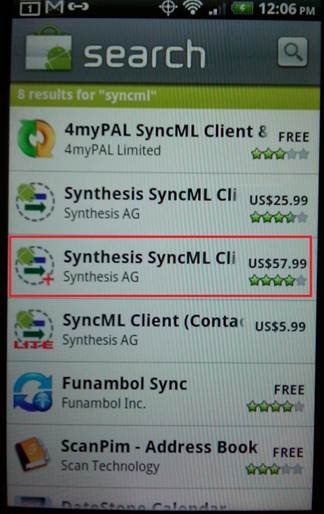
-Once in the market, click on the magnifying glass icon and search for “SyncML” and you will get several hits. The products long name is “Synthesis SyncML Client (Pro and or Standard).

Key point! SyncML Pro will automatically synchronize your contacts at an interval of your choosing, whereas SyncML “standard” requires that you tap the sync button to sync your calendar. There is a significant price difference so you much decide which you prefer and the value of automatic syncing.

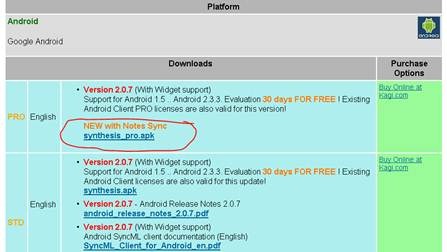
-For my purposes, I’m choosing the Pro version of the software. (Outlined in red).

clip_image003

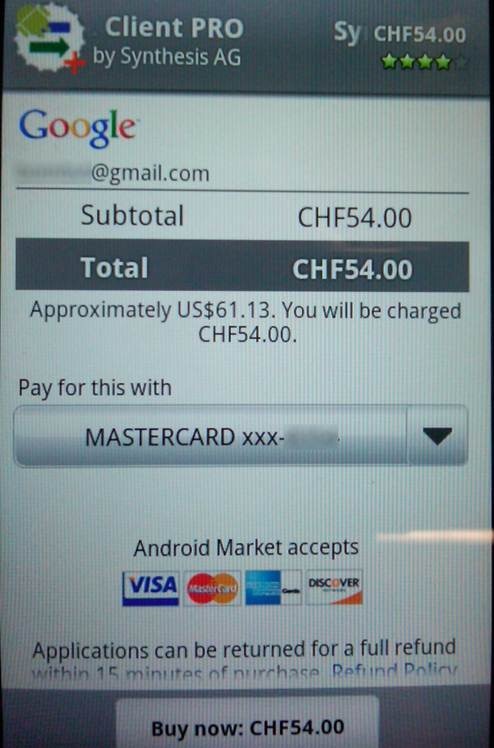
Upon setting up your Android, you will have either entered your Gmail account information, or you will obtain a gmail account. Using the market requires that you have one, and enter your credit card (or pur card) information into their interface.

The screen below shows the transaction (I have done some redacting for privacy.)

clip_image005

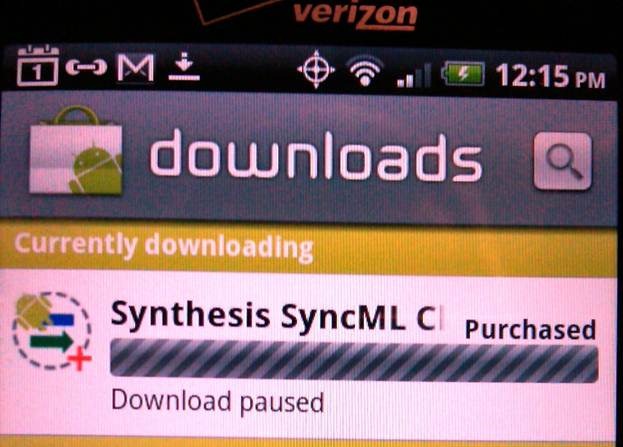
Meanwhile your copy of the SyncML client will be downloading.

clip_image007

clip_image009

clip_image011

clip_image013

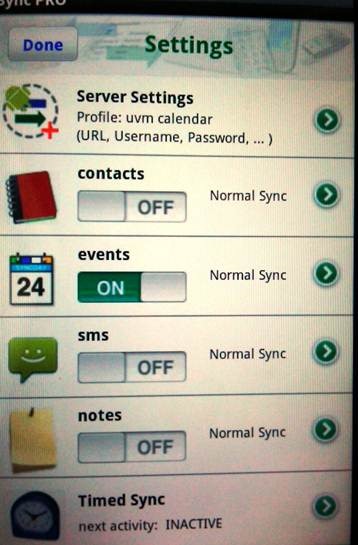
Click the “On” button.

clip_image015

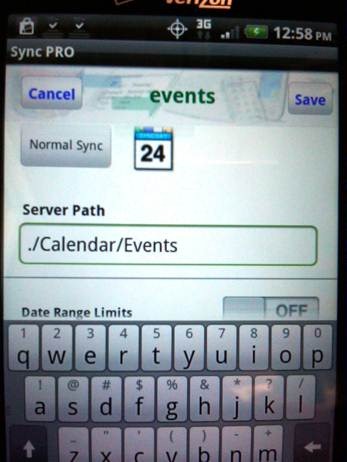
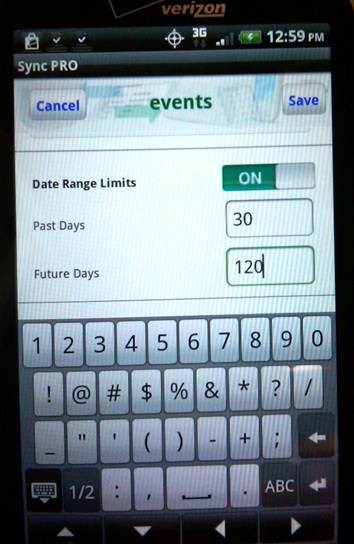
Click the Green arrow to the right of the Events section and enter as follows (case sensitive), Hit “save” when complete.

clip_image017

We recommend limiting the date range as shown, expanding beyond this tends to cause errors.

clip_image019

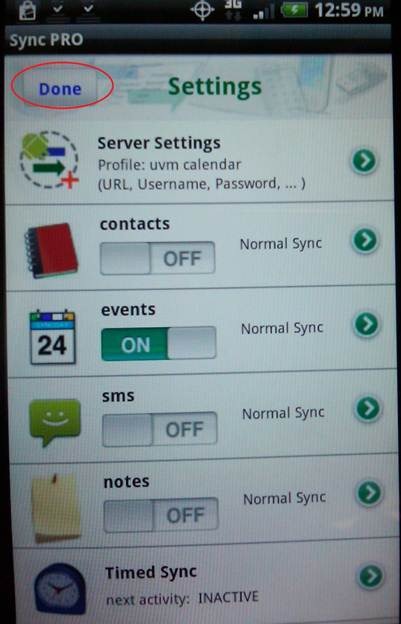
Hit “save” when complete. Then “Done” see below

clip_image021

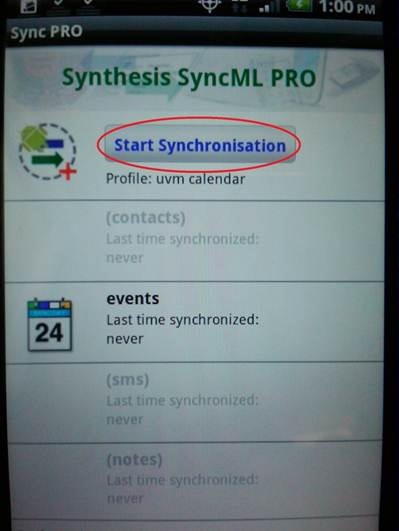
Start synchronization:

clip_image023

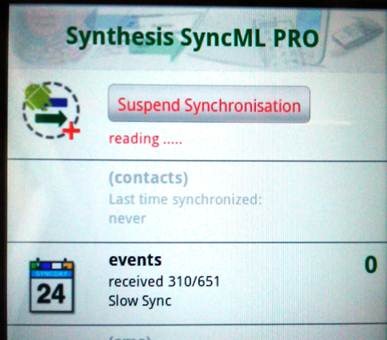
The process will resemble this.

clip_image025

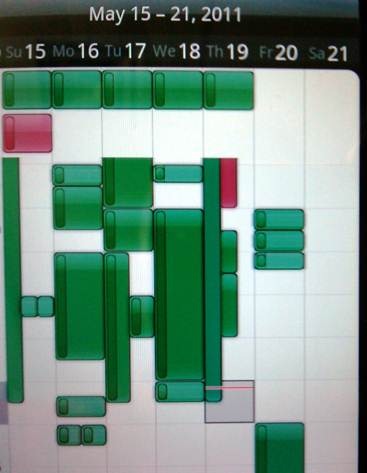
Your calendar on your Android should resemble this:clip_image027

Xoom Tablet continued.

Posted in Uncategorized on May 16, 2011 by Roger Bombardier Jr.


Errors and sync problems

Synchronization of the xoom tablet using syncML was fitful late last week from campus.  Such errors as “509” and “503”.  After reducing the date window down to 1 day in the past and 80 days in the future we got the sync to perform “normally”, or so it appeared.  Examination of my calendar shows some duplications and the reappearance of appointments that had been previously deleted.  I confirmed that normal sync is set, thus this is clearly a bug.  The from a quick visual exam I’d say that only 5-10% of appointments are affected.

Capture

ZOOM TABLET AND SYNCML

Posted in Uncategorized on May 11, 2011 by Roger Bombardier Jr.


First off let me tell you that configuring syncML on android devices is a “PAIN” and that I strongly recommend using the UVM calendar web page at “calendar.uvm.edu” with your browser instead.

Having said this if you want to use syncML from synthesis you can and here is a rough road map.

You can purchase the software at the link below, the “pro” version will sync automatically and the “standard” version requires that you hit the “sync” button in the application to make the synchronization happen.

http://www.synthesis.ch/

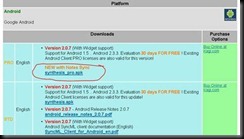
in the section on the left of the page you will find a “download” link, go to client downloads and locate the one for Android, click in there. I suggest the “pro” client.
clip_image002

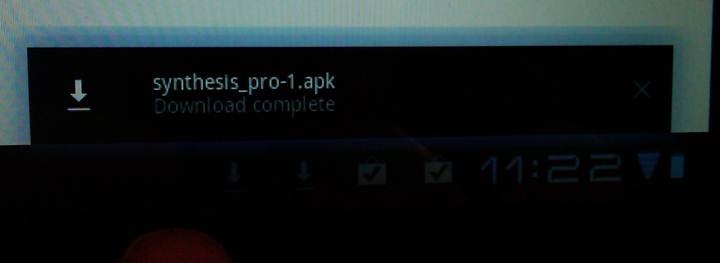
Skip the section that asks for your name address etc, and go to the bottom of the page, check, the “I have read…” and hit the “download now” link. Once the application has downloaded, you will see an indication in the lower right of your screen.
clip_image004

Tap on this and as to open it and the tablet will complain that the application comes from an unknown source. You will need to follow the link to authorize “Unknown Sources”. (When this entire process is complete I recommend turning this important security feature back on.)

When you start the syncML application, you can use the icon below in the “apps” menu.

clip_image006

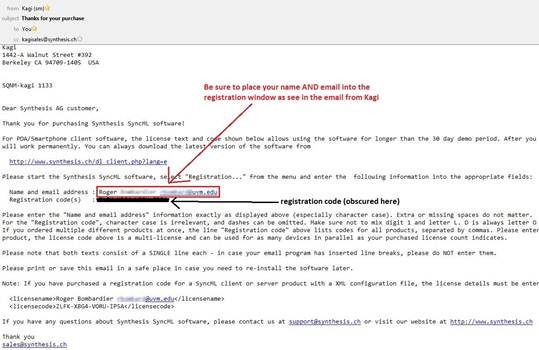
You will be asked to register your product, when you purchased it, you will have been sent an email with your license code.

IMPORTANT: Be sure to put your name and email where it says “name and email” in the registration window and type it exactly as show in the email you received. I have obscured my registration code below.
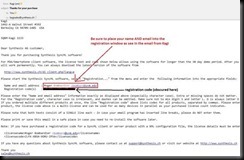
clip_image008

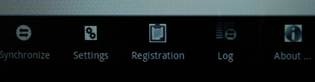
The “settings” menu may be reached by taping the menu on the lower center that looks like a grid and selecting the icon called “settings” shown below:
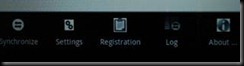
clip_image010

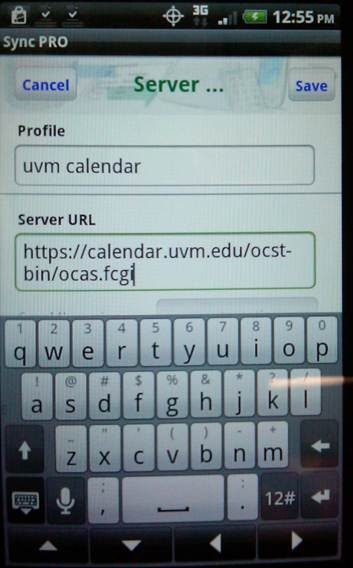
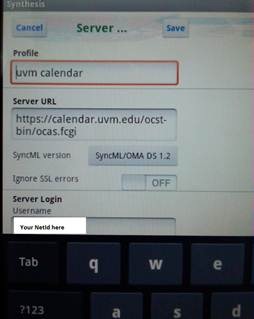
By tapping the URL field, you may enter the path to UVM’s Oracle Calendar server:
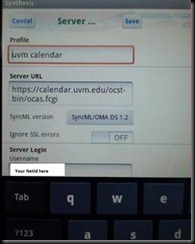
clip_image012

https://calendar.uvm.edu/ocst-bin/ocas.fcgi

(SOME OF THIS TEXT HAS BEEN STOLEN FROM OUR IPHONE PAGE, apologies to the real author, whoever you are)

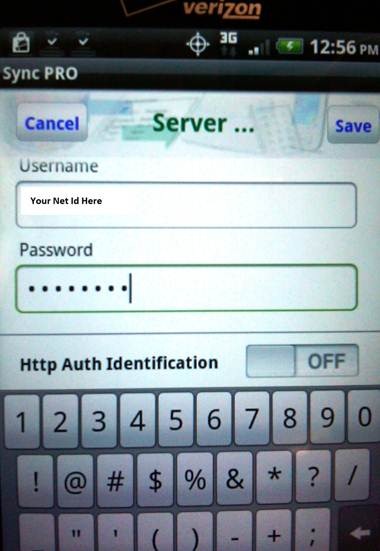
The above URL is continuous when entered, no spaces.  Double check this entry carefully.  Use the Save button on the top right when finished. Next, scroll down just a bit (by swiping upwards) and tap the User field under the Server Login heading.  Enter your UVM NetID here. Now tap the Password field and enter your NetID password and save these settings.

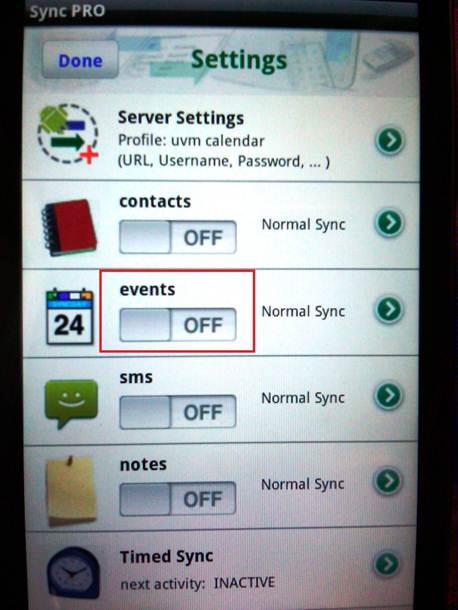
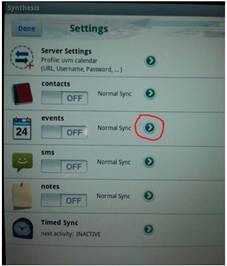
In the menu below, click on the green arrow to the right of the “events” heading:
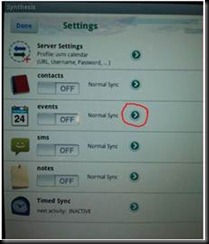
clip_image014

In the “Server Path” window type “./Calendar/Events” (include the period at the left and include upper case letters), Here you can also designate the date range of your syncronization.  We offically recommend not exceeding 30 days in the past and 120 days in the future.  Going outside this tends to cause failure.

tap “Save”

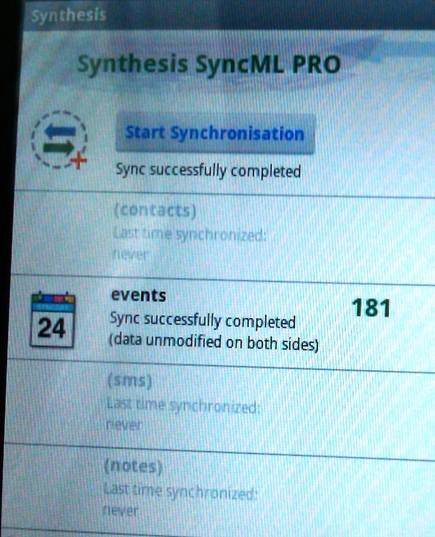
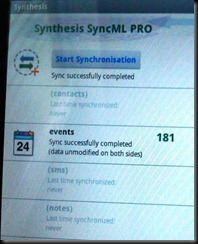
Once complete tap the “Done” button at the top of the settings window and tap the “Start Synchronization” button at the top of the main page menu. You should see numbers appear and an indication that the “Sync successful completed”.
clip_image016

To set your sync interval go to the “setting” menu off the main menu (grid icon lower left part of the screen) and click on the “Timed Sync” icon. In there you can set how often you want the synchronization to occur.

When you return to the tablets “app” screen locate your Calendar application, the icon will resemble this.

clip_image017

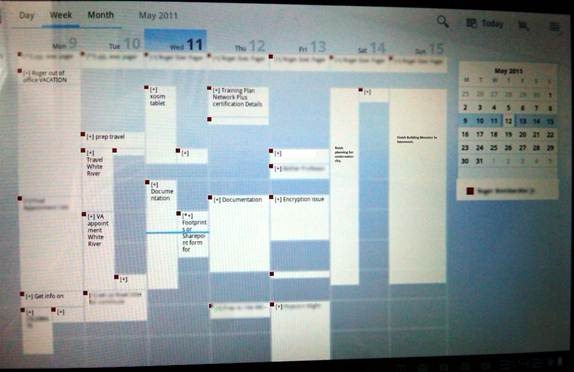
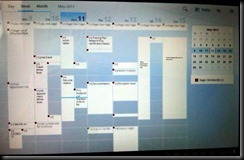
Now, as you can see, the scintillating joy that is my calendar is synchronized on the tablet.
clip_image019

Skip to toolbar